
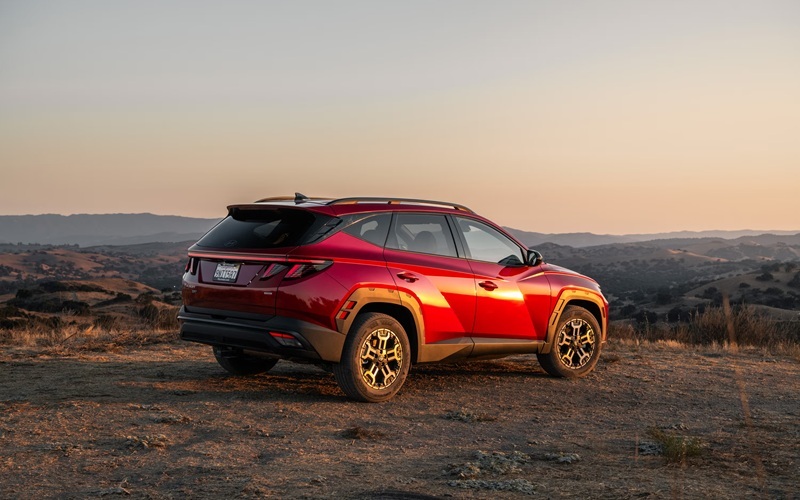
2026 Hyundai Tucson: How Does Digital Key Sharing Work?
The Hyundai Tucson available in Canada supports Hyundai Digital Key technology on compatible trims, allowing eligible smartphones to function as a vehicle key. After completing the registration process through the MyHyundai with Bluelink system, an authorized device can lock, unlock, and start the vehicle without using the traditional key fob. The primary owner can securely share Digital Key access with up to three additional users, manage permissions, and revoke access at any time through the supported digital wallet platform. The system combines Near Field Communication (NFC), Bluetooth Low Energy (BLE) functions where supported, encrypted authentication, and the Tucson push-button start system to provide secure digital vehicle access. (Hyundai Canada)
Core Components
Hyundai Digital Key Technology
The Hyundai Tucson integrates Hyundai Digital Key with the vehicle's electronic access and immobilizer systems. Instead of relying solely on a physical smart key, the system authorizes compatible mobile devices that have been securely paired with the vehicle.
The digital credential is stored within the supported secure wallet environment of the smartphone rather than as a simple application file. This approach protects the credential using the phone's built-in security hardware and operating system authentication.
Digital Key works alongside—not as a replacement for—the conventional Tucson smart key. Owners continue to receive physical proximity keys even when Digital Key is activated. (Hyundai Canada)
Smartphone Compatibility
For the Canadian market, Digital Key is compatible with supported Apple iPhone and select Samsung smartphones. Compatibility depends on both the device model and operating system version.
Before pairing, the owner should verify that:
the smartphone supports Hyundai Digital Key
the operating system meets current requirements
the required wallet application is available
Bluelink services are activated
the vehicle software is current
Unsupported devices cannot be registered even if the Hyundai application is installed.
NFC and Bluetooth Communication
The Tucson uses multiple wireless technologies depending on the supported implementation.
NFC
Near Field Communication provides close-range authentication.
To unlock the vehicle, the smartphone is held directly against the driver's door handle NFC reader. Because NFC only functions over a very short distance, accidental unlocking from several metres away is prevented.
Inside the vehicle, NFC also assists during engine start authorization when the phone is positioned in the wireless charging area on compatible configurations. (Hyundai Canada)
Bluetooth
Bluetooth Low Energy supports additional communication functions on compatible Digital Key implementations.
BLE allows the vehicle and smartphone to exchange encrypted information while consuming minimal battery power. Combined with other authentication methods, it improves convenience without replacing the security provided by NFC-based verification. (Hyundai)
Authentication Methods
Every Digital Key transaction requires authentication between the smartphone and the Tucson.
Depending on the device configuration, authentication may include:
secure hardware encryption
biometric verification
facial recognition
fingerprint recognition
device passcode
encrypted Digital Key credentials
This layered approach ensures that possession of the smartphone alone is not necessarily sufficient to access the vehicle.
Key Sharing Permissions
One of the primary features of the Hyundai Tucson Digital Key system is digital key sharing.
The primary owner can electronically send a Digital Key to authorized users without physically handing over a key fob.
The owner controls:
who receives access
when access begins
when access expires
when access is revoked
Access can be cancelled immediately if a shared user no longer requires vehicle access. Canadian Digital Key supports sharing with up to three additional users. (Hyundai Canada)
User Profiles
Each authorized Digital Key user can automatically load personal vehicle settings when supported.
Depending on vehicle configuration, individual profiles may include:
driver's seat position
exterior mirror position
climate control preferences
infotainment settings
audio preferences
This allows multiple drivers to use the same Tucson while maintaining individualized comfort settings. (Hyundai Canada)
Remote Locking and Unlocking
Digital Key itself operates through close-range authentication.
Remote locking and unlocking functions are handled separately through Bluelink connected services rather than NFC.
This distinction improves security because Digital Key authentication requires the authorized device to be physically close to the vehicle, while remote functions rely on secure online communication. (Hyundai Canada)
Push-Button Start Integration
Once the smartphone has been authenticated, the Tucson push-button ignition system recognizes the authorized Digital Key.
On compatible configurations:
Unlock the vehicle.
Enter the driver's seat.
Position the smartphone as instructed during setup if required.
Depress the brake pedal.
Press the START/STOP button.
If authentication is successful, the immobilizer permits engine starting without the physical smart key. (Hyundai Canada)
Security Protections
The Digital Key system incorporates several layers of protection.
Security features include:
encrypted credential storage
secure wallet integration
short-range NFC communication
controlled user authorization
owner-controlled key revocation
secure pairing process
immobilizer verification
Because NFC functions only over a distance of a few centimetres, unauthorized activation from farther away is significantly reduced. (Hyundai Canada)
Pairing Process
Initial setup requires both physical smart keys for security verification.
The typical registration procedure includes:
Activate Bluelink.
Install the MyHyundai application.
Open the Digital Key section.
Follow the smartphone prompts.
- Access the infotainment menu:
Setup
Vehicle
Digital Key
Smartphone Key
Register the smartphone.
Complete wallet authorization.
Verify successful pairing.
Both the vehicle and smartphone must remain powered throughout registration. (Hyundai Canada)
Diagnostics Guide
Most Digital Key setup problems involve configuration rather than hardware faults.
Common issues include:
Smartphone not compatible
Some phones lack the required hardware or supported operating system version.
NFC disabled
Digital Key cannot operate if NFC has been turned off in the phone settings.
Bluelink not activated
Vehicle enrollment must be completed before Digital Key registration can begin.
Pairing interrupted
Leaving the vehicle, switching off the ignition, or cancelling wallet authorization may interrupt registration.
Software mismatch
Older infotainment software or outdated smartphone operating systems may prevent successful pairing.
Incorrect phone positioning
During NFC authentication, the phone should be positioned directly over the NFC reader. Small differences in placement may prevent recognition.
Technicians at Southtown Hyundai can verify software versions and registration status if repeated pairing failures occur.
Maintenance Guide
Digital Key reliability depends primarily on software maintenance.
Owners should periodically:
install smartphone operating system updates
update the MyHyundai application
install infotainment software updates when available
maintain an active Bluelink subscription where required
remove Digital Keys from devices no longer in use
review shared user permissions regularly
If replacing a smartphone, the old Digital Key should be removed before registering the new device.
Although Digital Key provides convenient daily operation, owners should continue carrying at least one physical key during long trips or when travelling to areas where phone charging opportunities may be limited.
Situations where the physical key may still be necessary include:
initial Digital Key registration
smartphone failure
incompatible replacement phones
servicing procedures
depleted phone battery beyond supported reserve capability
resetting the vehicle's electronic systems
transferring ownership
2026 Hyundai Tucson FAQ
1. How many Digital Keys can be shared on the Canadian 2026 Hyundai Tucson?
The primary owner can share Digital Key access with up to three additional authorized users through the supported digital wallet platform. (Hyundai Canada)
2. Does Digital Key work without the physical key fob?
Yes. Once properly paired, a compatible smartphone can unlock, lock, and start the Hyundai Tucson without using the physical key during normal operation.
3. Can Digital Key unlock the vehicle from anywhere?
No. NFC-based Digital Key requires the authorized device to be very close to the vehicle. Remote locking and unlocking are handled separately through Bluelink connected services. (Hyundai Canada)
4. Why won't my phone pair with the Tucson?
Common causes include incompatible devices, disabled NFC, inactive Bluelink services, outdated software, or an incomplete registration process.
5. Should I still carry the physical key?
Yes. The physical key remains important for initial registration, emergency situations, servicing, smartphone replacement, and any circumstance in which the Digital Key cannot be used.
*Disclaimer: Content contained in this post is for informational purposes only and may include features and options from US or internacional models. Please contact the dealership for more information or to confirm vehicle, feature availability.*


